

One of things that people have done with the Vx0 is to use it as a Retro Gaming Machine under Windows 98SE. Here you will find three people's approach to setting up such an environment.
In May 2018 I heard from Brandon who had recently picked up a VX0L (dual monitor version + dual SD-reader/PCMCIA slot) and, after much trial and error, had been able to convert it into a Windows 98SE gaming machine. You can read about it here.
In November 2019 I heard from Xander who had also gone down the 'Wyse V90 and Windows 98 as a light gaming machine' route. He had recently bought a cheap Wyse V90LEW which was fitted with 2GB of Flash and 1GB RAM. As he didn't possess an external floppy drive or external CD drive he managed to install Windows 98 (and Windows XP) on it just using a USB flash drive. You can read about it here.
This was something that I had been considering doing for some time so I decided to follow Xander's guide and insert comments in it as necessary to reflect my particular circumstances, but ended up leaving his description 'as is' and producing my own version. You'll find that here.
Note: The Vx0 uses a VIA chipset and the drivers are still available from VIA's website. The PCI listings on the relevant hardware tab will identify the chipset driver you need.
It was the email from Xander in November 2019 that finally spurred me into installing Windows 98SE onto one of my Wyse Vx0s, something I had been wondering about doing for some time. Initially my idea was just to follow Xander's guide and to add the odd comment to it to reflect my own personal experience, but I ended up leaving his description 'as is' and producing my own version. However full credit to Xander whose input this article is based on.
Both Xander and Brandon emphasised the need for getting a copy of the installation CD (or at least the 190MB win98 folder) onto the internal flash drive due to problems with USB. As I was installing onto a V90L which was fitted with 512MB of flash this was not really an option for me. Anyway I wondered 'why?'. The setup program copies all the files from the installation medium over to the hard drive, then prompts for its removal before rebooting and continuing from the hard drive. I didn't see how it could lose sight of the flash drive whilst copying over the files so why bother?
Having been through my first attempt I found out the answer. Windows 98SE comes from the era of the early days of USB flash drives and its support for USB and USB flash drives is shaky to say the least. Having installed Windows 98SE I found, due to lack of suitable drivers, I had a system with with a clunky 640 x 480 display, no working ethernet interface and no working USB ports. By a roundabout route I managed to get some drivers onto the system but then, when trying to install them, ended up with a prompt to insert the Windows 98SE CD from which it needed to load additional software from the Win98 directory. As my copy of that was on a USB flash drive and, as mentioned above, I had no working USB ports, I was stuffed.
Luckily Xander had pointed me at a package (nusb36e.exe) that solved the USB problem.
Having been through it all once I repeated the exercise, but this time learning from my earlier mistakes, added some extra actions along the way.
You need:
As I noted earlier, until you get things sorted out, USB support is pretty poor. My USB mouse didn't really work from the outset and my USB keyboard stopped working once Windows 98SE started up. The easiest thing to do is dust off and connect some old PS/2 versions of these until you have the USB issues sorted.
The first thing we need is a USB flash drive that will boot on the Wyse V90. Whilst there are a variety of tools out there for creating bootable USB flash drives there are the peculiarities of the old Wyse Thin Client we have to deal with.
Luckily Xander had already done the leg work and had pointed out we were after:
...and identified the most suitable tool for the job as RMPrepUSB. Whilst there are other possibilities RMPrepUSB lets you limit the size of your boot partition. Other tools just use the full capacity of the USB flash drive you've plugged in.
So download RMPrepUSB, install it and then run it.
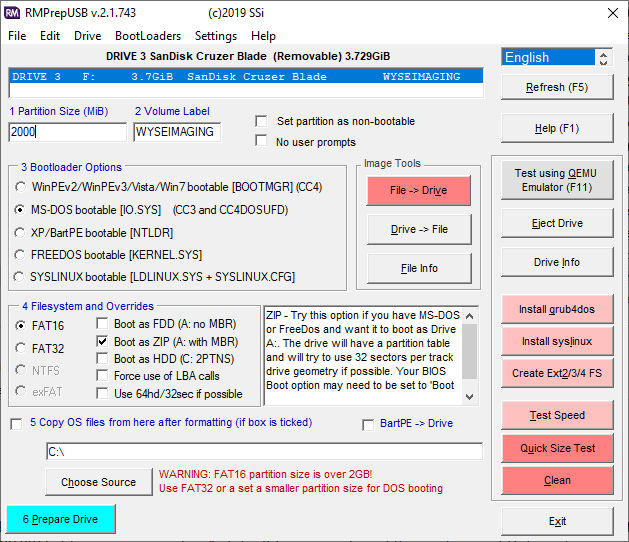
This gets us to the point where we have a USB flash drive that will almost boot on the Wyse V90. The next step is to add the MSDOS system files and the few executables from the Windows 98SE boot disk. I don't have such a disk, but there are many disk images out there on the Internet. I downloaded one, unzipped it, and ended up with the file I named bootSE.img which I copied to the USB flash drive.
Xander subsequently pointed me at: allbootdisks.com which does offer downloads of the individual files as well as the boot disk images. If you take that route (which I missed in my quick 'Google' for the boot disk) you can skip over the next few paragraphs.
The next problem was getting at the files in the floppy disk image. I knew I could do it easily in Linux, but I did a quick Google in case there was a simple way of doing it in Windows. Nothing 'simple' surfaced.
At this point I moved the USB flash drive to a Linux box (running Tiny Core), mounted the drive (which appeared as /dev/sdc1), mounted the floppy image, and then copied the files over.
tc@mirror:~$ mount /dev/sdc1
tc@mirror:~$ cd /mnt/sdc1
tc@mirror:/mnt/sdc1$ ls
System Volume Information/ drivers/
WyseV90/                   readme.txt
add-ons/                   setup.exe
autorun.inf                setuptip.txt
bootSE.img                 tools/
cdsample/                  win98/
tc@mirror:/mnt/sdc1$ mkdir /mnt/fd
tc@mirror:/mnt/sdc1$ mount -o loop bootSE.img /mnt/fd
tc@mirror:/mnt/sdc1$ ls -a /mnt/fd
./            ASPICD.SYS    DRVSPACE.BIN  FLASHPT.SYS   README.TXT
../           AUTOEXEC.BAT  EBD.CAB       HIMEM.SYS     SETRAMD.BAT
ASPI2DOS.SYS  BTCDROM.SYS   EBD.SYS       IO.SYS
ASPI4DOS.SYS  BTDOSM.SYS    EXTRACT.EXE   MSDOS.SYS
ASPI8DOS.SYS  COMMAND.COM   FDISK.EXE     OAKCDROM.SYS
ASPI8U2.SYS   CONFIG.SYS    FINDRAMD.EXE  RAMDRIVE.SYS
tc@mirror:/mnt/sdc1$ cp /mnt/fd/* .
tc@mirror:/mnt/sdc1$ ls -a
./                         HIMEM.SYS
../                        IO.SYS
ASPI2DOS.SYS               MSDOS.SYS
ASPI4DOS.SYS               OAKCDROM.SYS
ASPI8DOS.SYS               RAMDRIVE.SYS
ASPI8U2.SYS                SETRAMD.BAT
ASPICD.SYS                 System Volume Information/
AUTOEXEC.BAT               WyseV90/
BTCDROM.SYS                add-ons/
BTDOSM.SYS                 autorun.inf
COMMAND.COM                bootSE.img
CONFIG.SYS                 cdsample/
DRVSPACE.BIN               drivers/
EBD.CAB                    readme.txt
EBD.SYS                    setup.exe
EXTRACT.EXE                setuptip.txt
FDISK.EXE                  tools/
FINDRAMD.EXE               win98/
FLASHPT.SYS
tc@mirror:/mnt/sdc1$ sudo umount /mnt/fd
tc@mirror:/mnt/sdc1$ cd
tc@mirror:~$ sudo umount /dev/sdc1
tc@mirror:~$
I moved the USB flash drive back to my Windows PC to continue the setup phase.
I downloaded the ethernet and video drivers from VIA's website and copied the unzipped versions of these to a directory (WyseV90) on the USB flash drive.
Finally I downloaded the USB utility nusb36e.exe and added that to the (WyseV90) directory on the USB flash drive.
The next step was to boot the USB flash drive on the Wyse V90, and select option 2 from the startup menu (Start without CDROM support). This will get you to an A:\ prompt;
Unlike current versions of Windows the Windows 98SE setup program will not partition or format the hard drive - it just will use what is there, or abort if nothing suitable exists.
I used fdisk to delete all partitions from the 512MB flash drive and created a single DOS partition. After rebooting it was a case of formatting the drive (format c:) followed by another reboot.
Finally I copied nusb36e.exe to C:\.
At this point it is time to run the Windows 98SE setup program from the root directory of the USB flash drive. This goes through its first phase of copying all the files from the installation media to the flash memory of the V90, reboots and continues with the installation process prompting for various bits of information.
As I noted at the start, at this point you will find that you have a 640 x 480 display, no ethernet connection, and non-functional USB ports.
Once the installation completes it is time to sort out the USB problem so that we can start adding the right drivers to the system. The first step is use Device Manager to delete the current USB support:
You should end up with something like this:
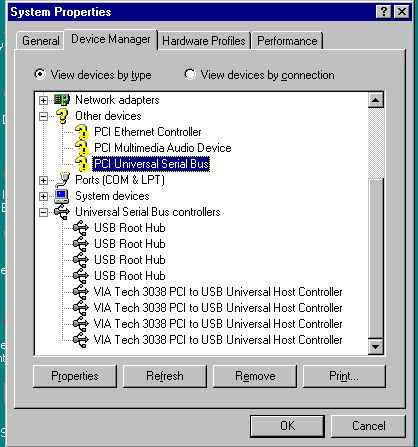
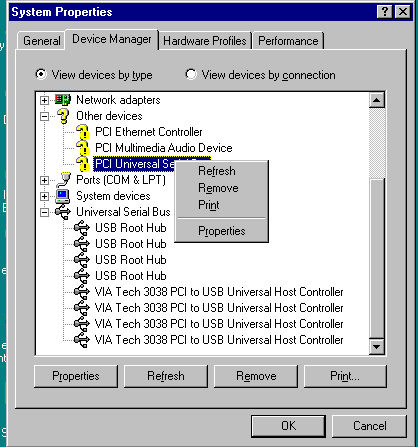
We now want to get rid of anything to do with USB. These are the 'PCI Universal Serial Bus' entry and everything under 'Universal Serial Bus controllers. We do this by highlighting an entry, right clicking on it and then selecting 'Remove'.
After you've worked through them all you should be left with:
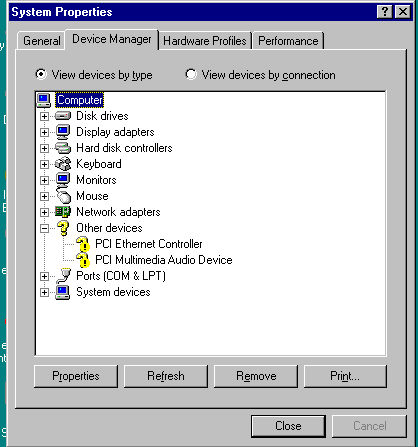
Now it is time to load the new USB software.
Go to Start -> programs -> msdos prompt
When the command line window opens go to the root directory (or wherever you put it) and run nusb36e.exe
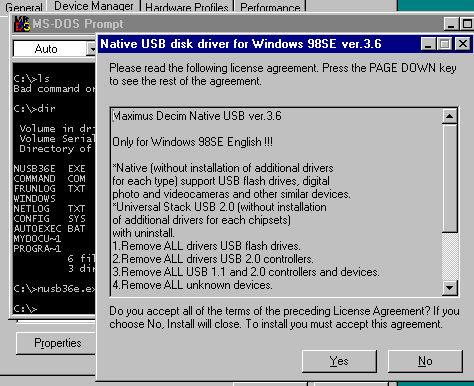
Click on 'yes'. The software will get installed and the system will reboot. During the startup phase there will be various messages as it finds and re-installs the USB drivers.
Now plug in your USB flash drive and open up Windows Explorer. There you should find that the USB flash drive has appeared as drive D:
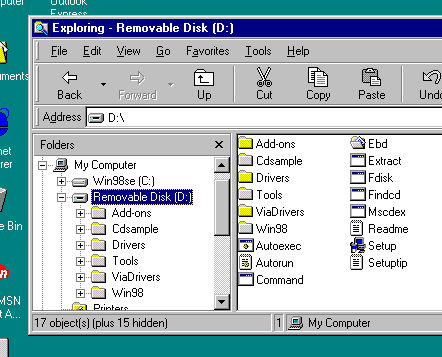
You can now get on with installing the various drivers and software you want.
My first two were:
d:
cd WyseV90\video
setup
and
cd d:\WyseV90\6102v25VIA
Winsetup\wx9\wx9setup.exe
I should point at that at this stage Windows shows the used/free space on my flash drive (C:) to be 246MB/241MB.